To main page   Join our reseller program

UniSent COM Add-in for Microsoft® Outlook


Updated: 4-July-2008
There is another group mailbox-related utility here: RightFrom
Microsoft Office Marketplace logo

Suppose that Outlook user John Doe has access to his personal mailbox and to the additional mailboxes (usually "Info" <info@company.com>, "Sales" <sales@company.com> etc.) on Exchange server. When he replies to or forwards from these mailboxes the message goes into his primary mailbox Sent items folder.
This utility ensures that the message sent with the second mailbox's From address stay in the mailbox that it originated from (i.e. the sent message goes to Sent Items folder of the mailbox the item was sent from).
Also you can easily see who was the original author of the message.
Review these articles:    
Allowing Users to Access Multiple Mailboxes or Creating a Group Mailbox
How to Add Another Person's Mailbox to Your Outlook Profile
How to Grant Send As and Send on Behalf Permissions in Exchange 2000 Server
How to Grant a User Send As Rights in Exchange Server 5.5 and Exchange 2000

Current version 7.3.0.11

How it works

UniSent utility scans sender address of each sent message in the main mailbox Sent items folder and in case it matches the additional mailbox name moves the message to the appropriate Sent items folder.

Installation
 #  To Do 
 1.  Download UniSent2007-Demo.zip archive file.  
 2.  Unpack UniSent2007-Demo.zip  
 3.  Exit Outlook in case it is running.  
  Outlook 2003   Outlook 2007  
 4.  Install Microsoft CDO library. CDO is listed as Collaboration Data Objects in the list of Outlook optional components in the Office installation.    Skip this step.  
 5.  Execute UniSent2007_per_user.msi. After completing the installation start Outlook.  
  Outlook 2003   Outlook 2007  
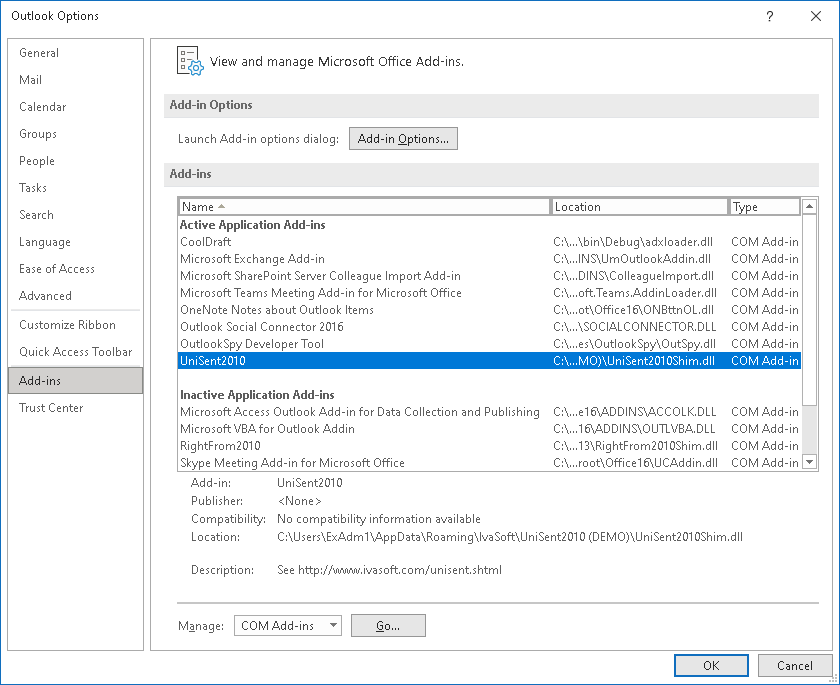
 6.  Click Tools -> Options -> Other -> Advanced options...-> COM Add-Ins.   Click Tools -> Trust Center -> Add-ins. Select "COM add-ins" in the Manage: listbox (in the bottom of the page) and click Go button.  
UniSent2007 installation picture (Outlook 2003)           UniSent2007 installation picture (Outlook 2007)  
You will see checked UniSent COM Add-in in the list there.  

UniSent software is distributed as a set of 2 .msi packages and thus can be deployed to computers or users in the organization using Windows Group Policy Software Installation.

Testing

Let's suppose that the primary mailbox name is "John Doe" and the additional mailbox name is "testuser1".

 #  To Do   Screenshots  
      Outlook 2003     Outlook 2007   
 1. Run Outlook and click the New button to create a new message. Enable the "From:" field.   UniSent2007 testing picture 1 (Outlook 2003)   UniSent2007 testing picture 1 (Outlook 2007) 
 2. Fill in the "From:" field with "testuser1". Fill in the "To:" field with "John Doe". Fill in the rest fields and send the message.   UniSent2007 testing picture 2 (Outlook 2003)   UniSent2007 testing picture 2 (Outlook 2007)  
 3. Navigate to Testuser1 > Sent Items. Make sure that the message you have just sent out is placed there.   UniSent2007 testing picture 3 (Outlook 2003)   UniSent2007 testing picture 3 (Outlook 2007)  
 4.  (Outlook 2003) Open View menu. Select Arrange By > Current View > Customize Current View...
(Outlook 2007) Open View menu. Select Current View > Customize Current View...
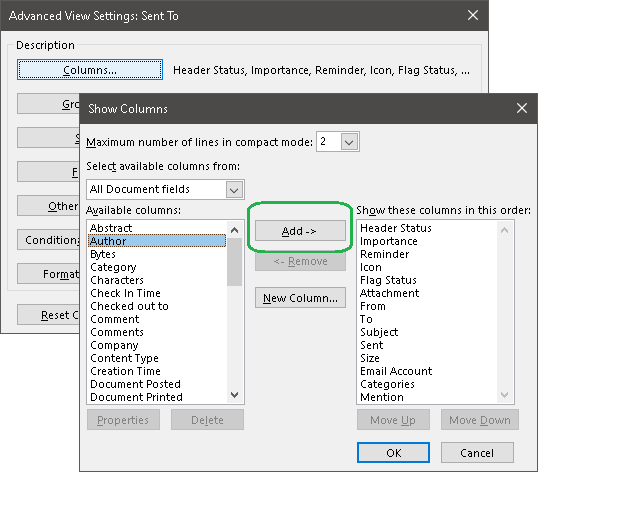
Click Fields... button. Select All document fields from the list on bottom left corner of the form. Select Author field in the Available fields: list and press Add button. Click OK button to close Show Fields window. Click OK button to close View Summary window.
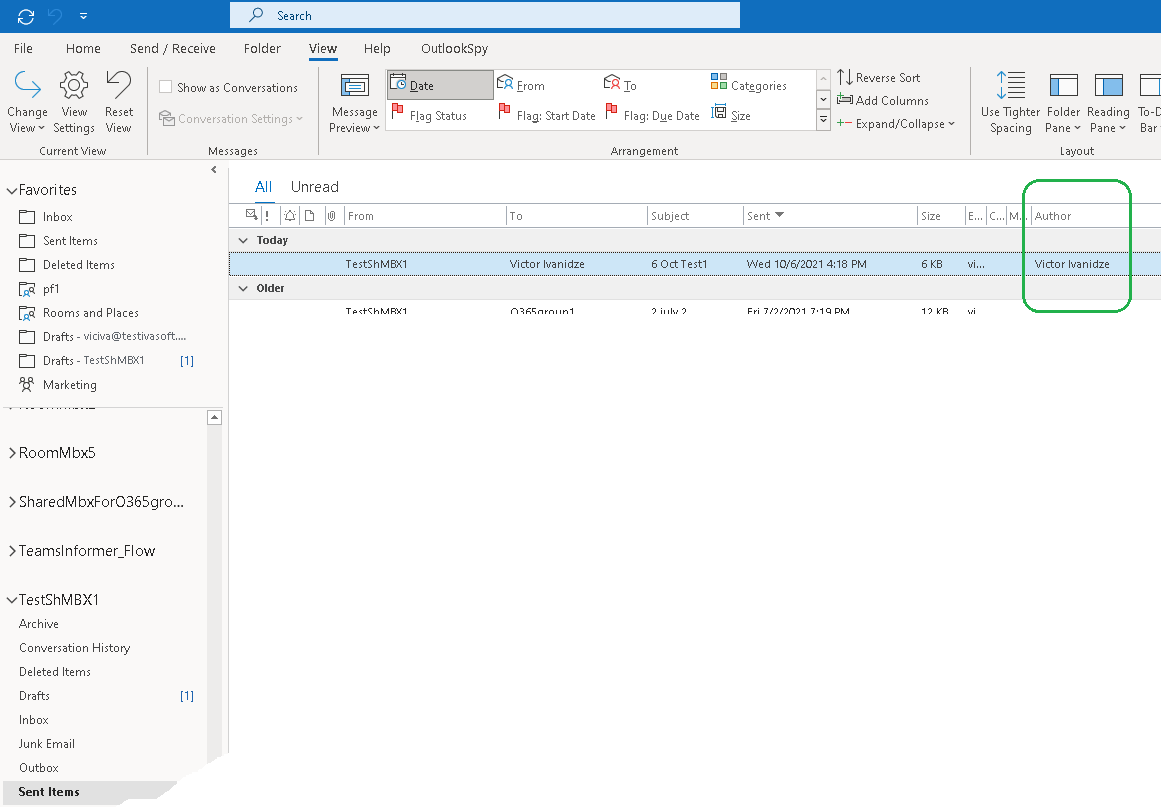
Author column will be populated with "John Doe", as John Doe is the original author of this message.
  UniSent2007 testing picture 4 (Outlook 2003)   UniSent2007 testing picture 4 (Outlook 2007)  

I have tested UniSent with Outlook 2003/2007 on Microsoft Windows XP/Windows Vista® and Microsoft Exchange Server 2000/2003/2007.

Uninstallation

You can uninstall UniSent using Add/Remove programs in the Control Panel.

About this demo version

UniSent demo version works only for additional mailboxes whose names include "TEST".
Examples:
      UniSentTEST
      Test2
The full version has no limitations.

Older releases

Older versions of UniSent you can find at http://www.ivasoft.com/unisentold.shtml

F.A.Q.

Q. Does UniSent works only on messages that are replied to or forwarded, or will it also works with messages that I originate from scratch, using the account which is not the default?
A. UniSent also works with messages that you originate from scratch.

Q. I am about to purchase this product but I wondering regarding updates/patches. What are the policies regarding updates? Do you provide them freely or as a purchase?
A. As a registered user, you will get free updates for one year from the date of purchase.
Once the new version is ready, this information will be e-mailed to all registered users. We will send updates via e-mail to those who request them.

Q.  I have already ordered your software and want to view data relating to my order.
A.  Just visit our Customer Care Center.

Prices

Licensing policy: the product is licensed on a per-computer (sometimes called per-workstation) basis.

Number of licensesIndividual price   Join our reseller program
1-4EUR 35.00
USD 60.31
 ORDER
5-9EUR 30.00
USD 51.69
From 10EUR 28.00
USD 48.25
Site licenseEUR 1050.00
USD 1809.30
 ORDER
Site license (Educational)EUR 840.00
USD 1447.44
 ORDER
Enterprise licenseEUR 4500.00
USD 7754.14
 ORDER
All transactions are securely processed by our external registration provider Share-it Inc.   Visit our Customer Care Center for details.
Shopping Cart  ORDER SEVERAL PRODUCTS

Site license covers a single organization in one location (building complex). If you purchase a site license, you may use the program in an unlimited number of your company's computers within this area.
Enterprise license covers all computers of single organization world-wide. If your company has many branches even with thousands of machines, Enterprise license covers them all.

If you are interested in shared mailbox deleted items handling, look at this Microsoft KnowledgeBase article:
Items deleted from a shared mailbox go to the wrong folder in Outlook.

Feel free to send us your comments and criticism.

Thank you,
Victor Ivanidze,
software developer.

To main page Microsoft and the Office logo are trademarks or registered trademarks of Microsoft Corporation in the United States and/or other countries webmaster@ivasoft.biz